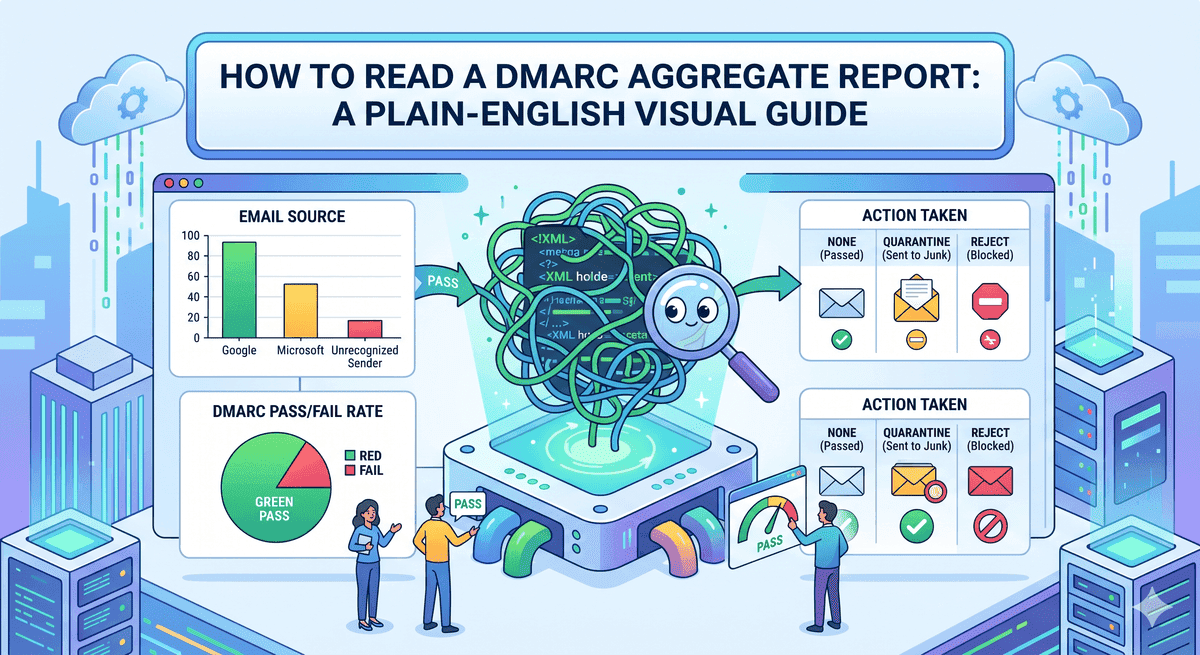
How to Read a DMARC Aggregate Report: A Plain-English Visual Guide
You signed up for DMARC, set up the record, and now your inbox has files arriving from Google, Yahoo, and Microsoft with names like `google.com!yourdomain.com!1747094400!1747180800.xml`.

They're unreadable, they pile up fast, and nobody told you what to do with them. That's normal. Those files are DMARC aggregate reports, and they contain everything you need to know about who's sending email as your domain — they're just packaged in a format made for machines, not people.
This guide explains what's actually inside those reports, what each piece tells you, and how to make sense of them without learning XML. It takes about 10 minutes to read, and by the end you'll be able to look at any DMARC report and understand the gist of what it's saying.
What is a DMARC aggregate report?
A DMARC aggregate report is a summary that email providers like Google and Microsoft send back to you every day. It tells you which servers tried to send email using your domain name, and whether those servers passed or failed authentication.
Think of it like a delivery log from every major mail provider, all addressed to your domain. Each entry says "we received an email claiming to be from you, sent by this IP address, and here's whether we believed it." When you add them all up over a week, you get a picture of who's actually sending mail as your company — both the legitimate services like your mailing list tool, and the suspicious ones like a scammer in another country.
The reports arrive once a day per provider, as an XML file (a structured text format that computers read easily and humans don't). One day's reports for a small business might be five or six files. For a busy domain, it can be dozens.
Why bother reading them at all?
Two reasons. First, the reports are how you discover legitimate senders you forgot about — the marketing platform from three years ago, the invoicing tool nobody told you was sending email, the helpdesk that's still active. You can't safely turn on DMARC enforcement until you know about all of them.
Second, the reports are how you find out you're being spoofed. If reports start showing emails sent from a server in a country you don't operate in, you know someone is impersonating your domain. Without DMARC reports, this happens silently for months.
If you ignore the reports completely, DMARC still works in the background — but you lose the visibility, which is half the value.
What's actually inside a report?
Every DMARC aggregate report has the same basic structure. There are three sections, and you only need to understand them at a high level.
The header says who sent the report and what time period it covers. Google's daily report from Tuesday will say something like "from: google.com, dates: midnight Tuesday to midnight Wednesday." That's it.
The policy section is a summary of your DMARC settings as the receiving server saw them — your policy (none, quarantine, or reject) and your domain. This is just confirming they read your record correctly.
The records section is the actual data. Each record is one group of emails: "we received X messages from IP address Y, claiming to be from your domain, and here's what happened with SPF and DKIM." A single report might have one record, or it might have fifty.
Here's a simplified version of what a single record looks like inside the XML:
<record>
  <row>
    <source_ip>203.0.113.45</source_ip>
    <count>23</count>
    <policy_evaluated>
      <disposition>none</disposition>
      <dkim>pass</dkim>
      <spf>pass</spf>
    </policy_evaluated>
  </row>
  <identifiers>
    <header_from>yourdomain.com</header_from>
  </identifiers>
</record>
That's the bit you'd want to read. Translated: 23 emails came from IP address 203.0.113.45 claiming to be from yourdomain.com, both DKIM and SPF passed, and the receiving server delivered them normally. Good news.
How to read a record without learning XML
You don't need to memorize the field names — you just need to know what to look for in any record. Here's the plain-English version of every field that matters.
Step 1: Find the source IP
The <source_ip> field is the address of the server that actually sent the email. Every record is grouped by IP. To find out who that IP belongs to, you can look it up at a site like whois.com or just paste it into Google. You'll get back the company that owns it — usually a mail provider like Microsoft, Mailchimp, SendGrid, or your own hosting provider.
This is the most important field because it tells you who's sending. If you recognize the company (Mailchimp, your CRM, Microsoft 365), the mail is probably legitimate. If you don't recognize it, that's where you investigate.
Step 2: Check the count
The <count> field is how many emails came from that IP during the reporting period. A record showing <count>1</count> is one email; a record showing <count>5000</count> is a lot. High counts from a recognized service like Mailchimp are normal. High counts from an unrecognized IP are a flag.
Step 3: Look at the policy evaluated section
The <policy_evaluated> section is the verdict. Three fields:
<disposition>: what the receiving server actually did with the mail.nonemeans it was delivered normally.quarantinemeans it went to spam.rejectmeans it was bounced.<dkim>: whether DKIM authentication passed or failed.<spf>: whether SPF authentication passed or failed.
The combination tells you the story. Both pass and disposition none? Everything worked. SPF fails but DKIM passes and disposition none? Common with email forwarding — usually fine. Both fail and disposition quarantine? Someone tried to spoof you and got caught.
Step 4: Check the identifiers
The <header_from> field shows the domain in the From: line of the email. This should always be your domain (or a subdomain of it). If it's something else, the receiving server is reporting on a different message that referenced your domain somewhere.
Step 5: Group records by source IP
This is the part that gets painful with raw XML and easy with a tool. Each report is one provider's data, but the real picture comes from grouping records across all providers by source IP. You want to know: "across every report from every provider this week, how much mail did IP 203.0.113.45 send, and what was the pass rate?" That's the question that tells you whether to trust that IP.
⚠️ Heads up: the IP addresses in DMARC reports don't always match what your mail platform shows you. A platform like Microsoft 365 routes mail through many different IPs, and those IPs change over time. Don't panic if you see Microsoft IPs you don't personally recognize — look up the IP owner first.
How to do this without reading XML at all
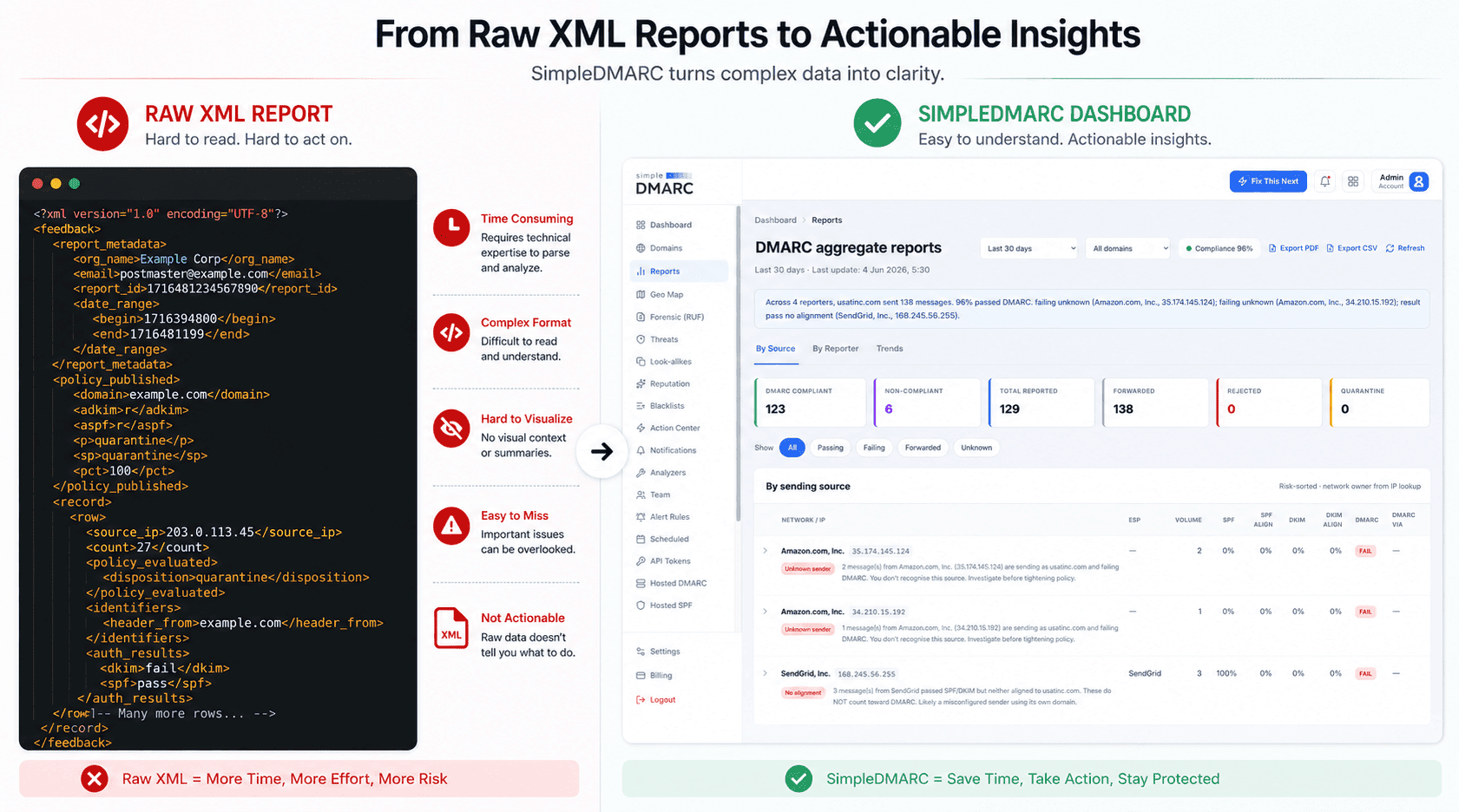
The honest answer is: you shouldn't. Reading XML reports by hand was something engineers did in 2014. The reports are designed to be processed by a tool, not by a human. Even people who run email security for a living don't read raw XML.
The whole point of a DMARC monitoring service is to read the XML for you, group records across providers, look up the IP owners, and show you the result as a normal dashboard. You see things like "Microsoft 365 sent 1,247 emails this week, all passing authentication" instead of fifty separate XML records you have to mentally combine.
SimpleDMARC does this automatically. You point your DMARC reports at SimpleDMARC's address instead of your own inbox, and the dashboard shows you who's sending email as your domain, broken down by service, with pass/fail rates and IP ownership already resolved. The same data, in a form you can actually use, with no XML to read. You can sign up for free at simpledmarc.com — the free plan includes report parsing for a single domain.
If you'd rather see what your reports look like before signing up for anything, the free DMARC record checker shows your current configuration and where reports are being sent.
Common questions
Why am I getting so many reports?
Every major mail provider sends you a report for every day they receive email claiming to be from your domain. Five providers, seven days, equals 35 files a week even for a quiet domain. Busy domains get hundreds. This is normal and is the main reason nobody reads them by hand.
What if my SPF or DKIM keeps failing?
That's actually what the reports are for. A consistent failure from a specific IP usually means one of two things: a legitimate service you haven't configured properly (most common), or someone trying to spoof your domain (less common but more serious). Look up the IP owner first — if it's a service you use, fix the SPF or DKIM configuration. If it's not, the failure means DMARC is doing its job and blocking the spoof attempt.
Do I need to keep all these XML files?
No. If you're using a DMARC monitoring service, it stores the parsed data for you and you can throw away the raw XML. If you're not using a service, keep maybe 30 days of files so you can spot trends, but there's no compliance reason to keep them forever.
Can I just turn off the reports?
You can, but you shouldn't. The reports are the only way to know what's actually happening with your domain. Turning them off is like uninstalling the dashboard from your car — the engine still runs, but you can't see anything.
What if I'm using Gmail or Microsoft 365 for my business email?
The reports still apply to you, and they're still useful. Gmail and Microsoft 365 handle the sending side of authentication, but DMARC reports are about everything that claims to be from your domain — including third-party tools you use to send marketing emails, transactional emails, or notifications. Those need separate monitoring even when your day-to-day mail runs through Google or Microsoft.
How often should I actually look at the reports?
If you're using a monitoring tool, once a week is plenty for most small businesses. Set aside ten minutes on a Friday, look at the dashboard, check whether anything new appeared, and move on. If you see a new sending source you don't recognize, that's worth investigating right away. Otherwise it's a routine check.
What's next
Once you can read DMARC reports — or have a tool reading them for you — the next step is moving your DMARC policy from p=none (monitor only) to p=quarantine (send failed mail to spam). You only do that once your reports show all your legitimate senders passing authentication for at least two weeks. The reports are how you know you're ready.
SimpleDMARC reads the reports for you and turns them into a plain-English dashboard. Sign up for free at simpledmarc.com to skip the XML entirely. If you haven't checked your current DMARC record yet, the free DMARC record checker is the right place to start.