SPF Record Management: Fixing the 10-Lookup Limit
SPF records break silently when you hit the 10-lookup limit. Learn how to audit, fix, and maintain your SPF record — including SPF flattening explained simply. URL slug: spf-record-management

Your SPF record probably worked fine when you set it up. Then you added Mailchimp.
Then HubSpot. Then a transactional email service for receipts. At some point, SPF started failing silently, and you may not have noticed until emails started landing in spam.
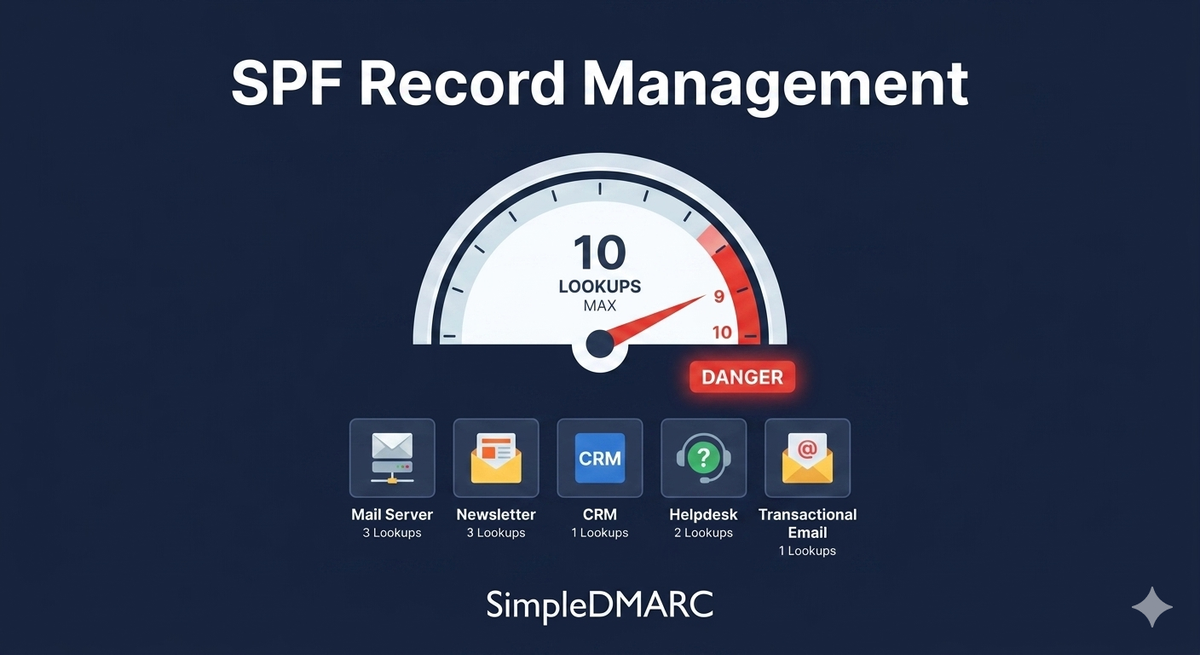
SPF (Sender Policy Framework) is defined in RFC 7208, which imposes a hard limit: receiving servers are allowed to perform at most 10 DNS lookups when evaluating your SPF record. Exceed that limit and the SPF check returns permerror, which DMARC treats as a failure. Legitimate email gets blocked or marked as spam.
This guide covers how to audit your current SPF record, understand where lookups are being consumed, fix the problem, and keep it under control as your sending stack changes.
Why the 10-Lookup Limit Exists
Each include:, a, mx, ptr, and redirect= mechanism in your SPF record requires a DNS lookup to resolve. The RFC 7208 authors set the limit at 10 to prevent SPF evaluation from triggering cascading DNS lookups that could create denial-of-service conditions on receiving mail servers.
The limit is per evaluation — it counts the lookups needed to fully resolve your record, including any lookups triggered by include: statements that themselves reference other include: statements.
A vanilla Microsoft 365 SPF record looks like this:
v=spf1 include:spf.protection.outlook.com -all
That one include: uses about 2–3 lookups internally. Add Google Workspace, Mailchimp, Salesforce, SendGrid, and Zendesk — each with their own include:, and you're well past 10.
Auditing Your Current SPF Record
Before fixing anything, count what you have. Run your domain through the free SPF checker at simpledmarc.com/tools/spf-checker — it resolves your full SPF record including nested include: references and shows you the total lookup count.
Alternatively, from the command line:
dig TXT yourdomain.com | grep spf
This returns your raw SPF record. The lookup count isn't visible from the raw record — you need to recursively resolve each include:. The checker does this automatically.
Common sending services and their approximate lookup cost:
| Service | Lookups consumed |
|---|---|
Microsoft 365 (spf.protection.outlook.com) |
2–3 |
Google Workspace (_spf.google.com) |
2 |
Mailchimp (servers.mcsv.net) |
1 |
Salesforce (_spf.salesforce.com) |
1–2 |
SendGrid (sendgrid.net) |
1 |
HubSpot (hubspotemail.net) |
1 |
Zendesk (mail.zendesk.com) |
1 |
| Freshdesk | 1 |
A typical SMB using Microsoft 365, Mailchimp, HubSpot, and Zendesk is already at 6–7 lookups before adding anything else. Add a CRM and a transactional email service and you're over the limit.
Three Ways to Fix SPF Lookup Overflow
Option 1: Remove services you no longer use
The most common cause of SPF bloat is old include: entries from services the organization stopped using. That newsletter platform from three years ago. The old CRM before the migration. Go through each include: and verify it's still in active use.
Option 2: Replace include: with direct IP ranges
Some sending services publish a stable IP range. Instead of include:sendgrid.net (which resolves through multiple lookups), you can use ip4: mechanisms directly:
v=spf1 ip4:167.89.0.0/17 include:_spf.google.com -all
The ip4: mechanism doesn't trigger a DNS lookup — it's evaluated directly against the connecting IP. Check whether your sending services publish stable IP ranges; some do, some don't. Mailgun and SendGrid both publish IP ranges; they change periodically, which creates a maintenance burden.
Option 3: SPF flattening
SPF flattening resolves all include: references and collapses them into direct IP addresses in a single record. Instead of nine include: statements that each trigger lookups, you end up with one record containing all the resolved IP addresses:
v=spf1 ip4:40.92.0.0/15 ip4:40.107.0.0/16 ip4:52.100.0.0/14 ip4:104.47.0.0/17 ip6:2a01:111:f400::/48 ip4:198.2.128.0/18 ip4:198.37.144.0/20 ~all
The lookup count drops to zero because there's nothing to resolve — the IPs are hardcoded.
The downside: when a sending service changes its IP ranges (which they do, without notice), your flattened record becomes inaccurate. SPF starts failing for that service's new IPs. Flattening requires monitoring and periodic updates to stay accurate. Third-party SPF flattening services automate this; they publish a single include: that points to a dynamically updated record.
Writing a Correct SPF Record
A valid SPF record follows this structure:
v=spf1 [mechanisms] [qualifier]all
Qualifiers for the all mechanism:
-all(hard fail): Reject mail from sources not listed in the record. Strongest enforcement.~all(soft fail): Mark mail from unlisted sources as suspicious but deliver it. Most common starting point.?all(neutral): No policy stance. Rarely used.+all: Authorize everything. Never use this — it makes your SPF record useless.
Most organizations should use ~all while getting DMARC set up and switch to -all once they're confident all legitimate senders are covered. DMARC enforcement (p=reject) makes the choice between -all and ~all less critical because DMARC already defines the rejection policy, but -all is cleaner.
Critical rules:
- One SPF record per domain. Multiple TXT records with
v=spf1cause evaluation failure. - Maximum 255 characters per DNS string. Split longer records across multiple strings in the same TXT record.
- Don't include senders that don't send email for that domain — every unnecessary
include:wastes lookups.
Maintaining SPF Over Time
The 10-lookup limit isn't a one-time problem. It comes back whenever you add a new sending service without removing an old one. Build SPF review into your onboarding process for new email tools: before adding any new sending service, check whether the current record has headroom.
Set a reminder to audit your SPF record quarterly. It takes five minutes with the SimpleDMARC SPF checker and catches drift before it causes deliverability problems.
Connect your DMARC monitoring at simpledmarc.com — aggregate reports will flag SPF failures from legitimate sources, giving you an early warning when the lookup limit is approached or exceeded.
SPF and DMARC: How They Work Together
SPF alone doesn't stop domain spoofing. An attacker can craft an email where the visible From: header shows your domain while the envelope sender (Return-Path) shows a different domain — SPF checks the envelope sender, not the From header.
DMARC closes this gap by requiring alignment: the domain in the From header must match the domain that passed SPF (or DKIM). Without DMARC, SPF is just a check with no enforcement. For an introduction to setting up DMARC alongside SPF, see the DMARC setup guide for small businesses.
FAQ
My SPF lookup count is exactly 10 — am I okay?
RFC 7208 allows up to 10 lookups. Exactly 10 passes, but you have zero margin for drift. Any service that adds an include: to their SPF record pushes you over. Stay below 8 to give yourself room.
What does permerror mean in DMARC reports?
permerror in the SPF result field means the SPF evaluation encountered a permanent error — most commonly the lookup limit being exceeded. Treat it as an SPF failure for DMARC purposes.
Does adding IP addresses count toward the 10-lookup limit?
No. ip4: and ip6: mechanisms are evaluated directly without DNS lookups. Only include:, a, mx, ptr, exists, and redirect= consume lookups.
Should I use -all or ~all?
Use ~all (soft fail) while you're building out authentication and moving toward DMARC enforcement. Switch to -all (hard fail) once you're confident all legitimate senders are covered. If your DMARC policy is p=reject, the distinction matters less — DMARC's rejection policy takes precedence.
How often should I review my SPF record?
Quarterly at minimum, and immediately whenever you add or remove a sending service. SPF drift is one of the most common causes of DMARC failures in organizations that have been operating for more than a year.